

Table of Contents
Run a speed test first to find out whether the problem is your WiFi or your internet plan. Restarting your router and modem fixes many slow connections in minutes. Put your router in a central, open spot, high up and away from walls, metal and microwaves. Use the 5GHz band for speed when you are close to the router, and 2.4GHz for longer range. In a large home, a mesh WiFi system usually works better than a single router or an extender.
Few things are more annoying than a video that keeps buffering, a game that lags or a work call that freezes at the worst moment. Slow WiFi is one of the most common tech complaints in homes across America and Britain.
The good news is that many problems can be fixed in minutes, and most fixes are free. Before you pay for a faster plan or a new router, try these simple steps to fix slow WiFi.
Here is how to fix slow WiFi at home, with 15 easy tips to speed up your internet, plus how to tell whether the problem is your WiFi, your devices or your provider.
First, Find Out What Is Slow
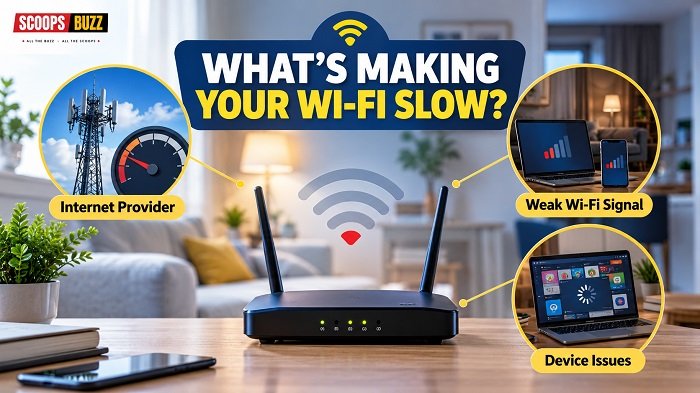
Before you try to fix slow WiFi, it helps to know where the problem is. There are three common causes:
- Your internet plan or provider is slow or having problems.
- Your WiFi signal is weak in parts of your home.
- A device is old, overloaded or has a problem.
Run a Speed Test
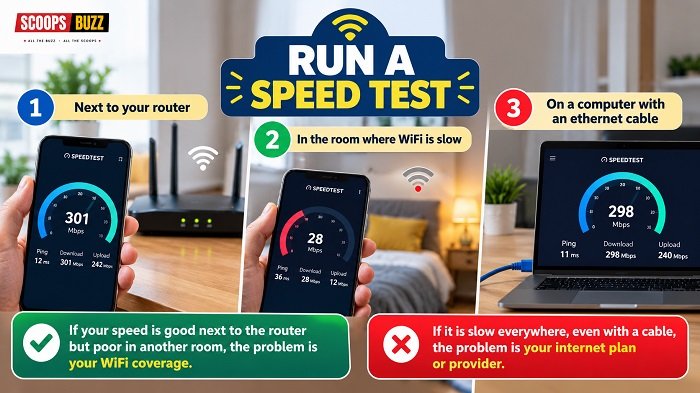
Use a free tool like Speedtest by Ookla to check your speed. Run the test:
- Next to your router
- In the room where WiFi is slow
- On a computer plugged in with an ethernet cable, if you can
If your speed is good next to the router but poor in another room, the problem is your WiFi coverage. If it is slow everywhere, even with a cable, the problem is probably your internet connection or plan.
What Speed Do You Need?
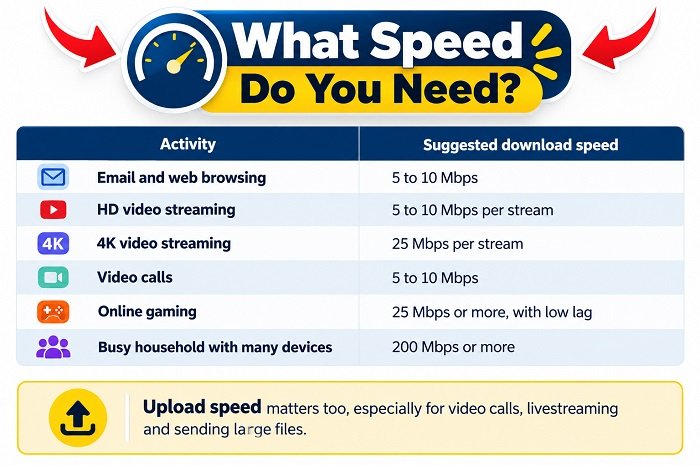
| Activity | Suggested download speed |
| Email and web browsing | 5 to 10 Mbps |
| HD video streaming | 5 to 10 Mbps per stream |
| 4K video streaming | 25 Mbps per stream |
| Video calls | 5 to 10 Mbps |
| Online gaming | 25 Mbps or more, with low lag |
| Busy household with many devices | 200 Mbps or more |
Upload speed matters too, especially for video calls, livestreaming and sending large files.
15 Ways to Fix Slow WiFi at Home
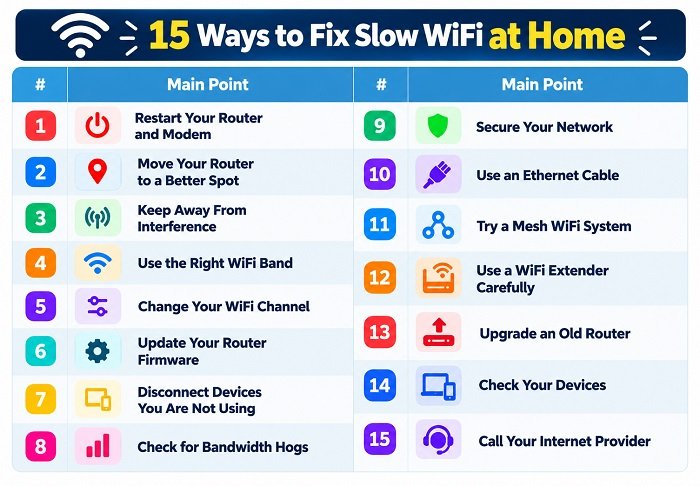
1. Restart Your Router and Modem
It sounds too simple, but restarting your equipment is the first thing to try when you want to fix slow WiFi. It clears temporary glitches and memory problems.
Unplug the router and modem, wait about 30 seconds, then plug the modem in first and the router after it. Give them a few minutes to start up.
2. Move Your Router to a Better Spot
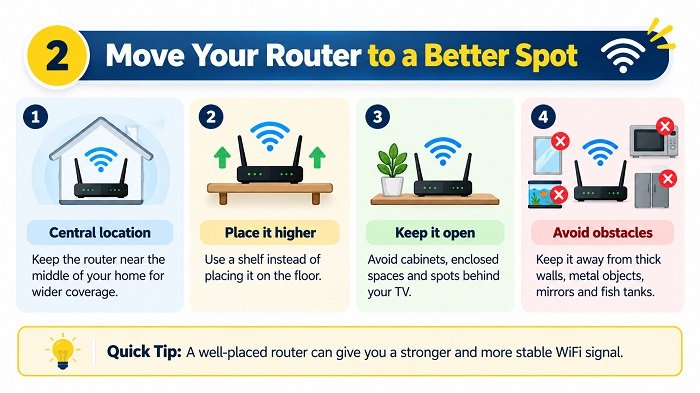
Router placement is one of the easiest ways to fix slow WiFi. WiFi signals spread out from the router and get weaker through walls, floors and furniture.
For the best signal:
- Place it in a central location in your home.
- Put it up high, on a shelf rather than the floor.
- Keep it out in the open, not inside a cabinet or behind a TV.
- Keep it away from thick walls, metal objects, mirrors and fish tanks.
3. Keep Away From Interference
Some household devices can interfere with WiFi, especially on the 2.4GHz band. These include microwave ovens, cordless phones, baby monitors and some Bluetooth devices. Move your router away from them if you can.
4. Use the Right WiFi Band
| Band | Speed | Range | Best For |
|---|---|---|---|
| 2.4GHz | Slower | Longer | Distant devices and smart home gadgets |
| 5GHz | Faster | Shorter | Streaming and gaming nearby |
| 6GHz | Very fast | Shortest | Compatible WiFi 6E/7 devices nearby |
Most modern routers broadcast on two or three frequency bands:
| Band | Speed | Range | Best for |
| 2.4GHz | Slower | Longer | Devices far from the router, smart home gadgets |
| 5GHz | Faster | Shorter | Streaming and gaming near the router |
| 6GHz (WiFi 6E and WiFi 7) | Fastest | Shortest | Newer devices in the same room |
If your router shows separate network names for each band, connect your phone, laptop or TV to 5GHz when you are close to the router for faster speeds.
5. Change Your WiFi Channel
Changing the channel can fix slow WiFi in crowded areas. In apartment buildings and busy neighborhoods, many routers may be using the same channel, which causes congestion. Most routers pick a channel automatically, but you can log into your router settings or app and try a different one.
On the 2.4GHz band, channels 1, 6 and 11 usually work best because they do not overlap.
6. Update Your Router Firmware
Router makers release updates that fix bugs, improve security and sometimes boost performance. Check your router app or settings page for a firmware update, or turn on automatic updates if available.
7. Disconnect Devices You Are Not Using
Every phone, tablet, smart speaker, camera and TV connected to your network uses some bandwidth. Old devices you no longer use may still be connected. Remove them from your network and pause large downloads when you need speed for something else.
8. Check for Bandwidth Hogs
Large game downloads, cloud backups, 4K streaming and video calls can all slow things down for everyone else. If you know a big game download is coming, such as a major new release, schedule it for overnight.
Many router apps let you see which devices are using the most data and set priority for important devices, a feature often called QoS.
9. Secure Your Network
If your WiFi is not password protected, or uses an old, weak password, neighbors could be using your connection. Use a strong password and the latest security setting, usually WPA3 or WPA2, in your router settings.
10. Use an Ethernet Cable
Plugging in is a simple way to fix slow WiFi for everyone else. For devices that do not move, like a gaming console, smart TV or desktop computer, a wired ethernet connection is usually faster and more stable than WiFi. It also frees up WiFi for your other devices.
If you cannot run a cable, powerline adapters can send internet through your home’s electrical wiring.
11. Try a Mesh WiFi System
If you have a large home, several floors or thick walls, one router may not be enough to fix slow WiFi. A mesh WiFi system uses two or more units placed around your home to create one strong network.
Mesh systems usually work better than older WiFi extenders, because they share one network name and move your devices to the strongest signal automatically.
12. Use a WiFi Extender Carefully
A WiFi extender can help in a single problem room, and it costs less than mesh. But extenders can cut speeds, and some create a separate network name. Place the extender halfway between the router and the dead zone, where the signal is still decent.
13. Upgrade an Old Router
If your router is more than five years old, it may not support newer, faster standards. Routers that support WiFi 6, WiFi 6E or WiFi 7 handle many devices much better. Check your router’s model to see what it supports.
Many internet providers rent routers to customers. Ask yours whether a newer model is available, sometimes for free.
14. Check Your Devices
Sometimes you cannot fix slow WiFi because the device is the problem, not the WiFi. Restart your phone or laptop, update its software, and check for apps running in the background. Older devices may not support faster WiFi bands. Clearing your browser’s cache can also help with slow web pages.
15. Call Your Internet Provider
If you have tried everything and your speed is still much lower than you pay for, contact your provider. Ask them to:
- Check for outages in your area
- Test the line to your home
- Replace old equipment
- Review whether your plan suits your household
Run several speed tests at different times of day first, so you have evidence to share.
How to Fix Slow WiFi for Gaming and Streaming
Gamers and streamers need more than raw speed. They also need low latency, often called ping, and a steady connection.
To fix slow WiFi for gaming:
- Plug in your console with an ethernet cable whenever possible.
- Turn on gaming or QoS mode in your router app to put your console first.
- Pause downloads and backups on other devices while you play.
- Choose the nearest game server in your game’s settings.
For streaming on a smart TV:
- Connect the TV to the 5GHz band or use a cable.
- Lower the streaming quality from 4K to HD if the picture keeps buffering.
- Restart the streaming app or device if problems start suddenly.
How to Fix Slow WiFi When Working From Home
Video calls freeze most often when upload speed is low or several people are online at once. To keep calls smooth:
- Sit in the same room as the router, or use a cable for your laptop.
- Ask others at home to pause big downloads during important calls.
- Turn off your camera if the connection struggles, to save bandwidth.
- Close cloud sync and backup apps until the call is over.
When Is the Problem Your Plan?
If your speed tests show slow speeds even with a cable plugged directly into the router, your plan may be too slow for your household. This is common when more people are working from home, gaming or streaming at the same time.
Compare plans from other providers in your area. In the US, cable, fiber and fixed wireless options are now available in many places. In the UK, full fiber broadband is spreading quickly, and many households can switch to much faster plans than they have now.
Fiber connections usually offer faster and more reliable speeds, including faster upload speeds, than older cable or copper lines.
Fix Slow WiFi: Quick Checklist
Work through this list in order to fix slow WiFi at home:
| Step | Done? |
| Run a speed test | |
| Restart router and modem | |
| Move router to a central, high spot | |
| Connect to 5GHz when close | |
| Update router firmware | |
| Disconnect unused devices | |
| Use ethernet for TVs and consoles | |
| Consider mesh WiFi for large homes | |
| Contact your provider if still slow |
Common WiFi Myths
More antennas always mean better WiFi. Not necessarily. Placement and technology matter more.
A faster plan fixes everything. Not if your WiFi coverage is the real problem. A fast plan with a weak signal will still feel slow in some rooms.
Extenders double your speed. Extenders improve coverage, but they often reduce speed.
You never need to restart your router. A regular restart can clear glitches and help performance.
How Long Do Routers Last?
Most routers last about four to five years before they start to feel slow compared with newer models, though they can work for longer. If your router is older and you have added lots of new devices, upgrading could make a noticeable difference.
To learn more about how WiFi standards have changed over the years, see the Wi-Fi Wikipedia page.
More From ScoopsBuzz
- GTA 6 release date: price, preload and download tips
- Black Friday 2026: dates, early deals and the full sales calendar
Frequently Asked Questions
How do I fix slow WiFi quickly?
Restart your router and modem, move closer to the router or connect to the 5GHz band, and disconnect devices you are not using.
Why is my WiFi slow in one room?
Walls, floors and distance weaken the signal. Move the router to a more central spot or add a mesh WiFi system.
Is 2.4GHz or 5GHz better?
5GHz is faster but has a shorter range. 2.4GHz reaches farther but is slower and more crowded.
Does a mesh WiFi system really help?
Yes, in larger homes or homes with thick walls, mesh systems usually give stronger, more even coverage than a single router.
How do I know if my internet provider is the problem?
Run a speed test with a computer connected by cable to the router. If it is still slow, the problem is likely your connection or plan.
How often should I restart my router?
Restarting it every few weeks, or whenever the connection feels slow, can help.
Sources: Ookla, FCC, Ofcom, router manufacturer guides