

Table of Contents
Go to Settings, General, iPhone Storage to see exactly what is using your space. Turn on Offload Unused Apps to remove apps you rarely use while keeping their data. Photos and videos are usually the biggest space hogs, so turn on Optimize iPhone Storage and empty Recently Deleted. Set Messages to keep texts for 30 days or 1 year instead of forever. Deleting downloaded shows, music and podcasts can free up gigabytes in minutes.
You go to take a photo, update an app or install the latest iOS version, and your iPhone says it again: “Storage Almost Full.”
It is one of the most common iPhone problems. Photos, videos, apps, messages and downloads can fill even a large iPhone over time. A phone that is almost full can also run more slowly and struggle to install updates.
The good news is that you do not need to buy a new phone. Here is how to free up storage on iPhone, with 15 easy tips that can give you back gigabytes of space in minutes.
Check What Is Using Your Storage
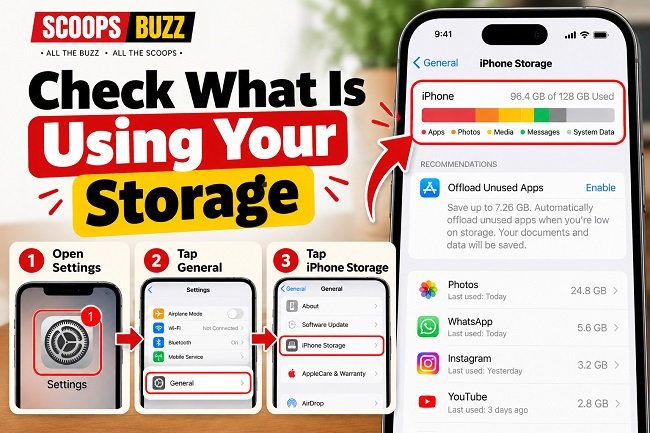
Before you start deleting, find out what is taking up space.
- Open Settings.
- Tap General.
- Tap iPhone Storage.
You will see a colored bar showing how much space is used by apps, photos, media, messages and system files. Below it is a list of apps sorted by size, starting with the biggest. Your iPhone may also show recommendations to save space at the top.
This screen is the best starting point to free up storage on iPhone.
15 Ways to Free Up Storage on iPhone
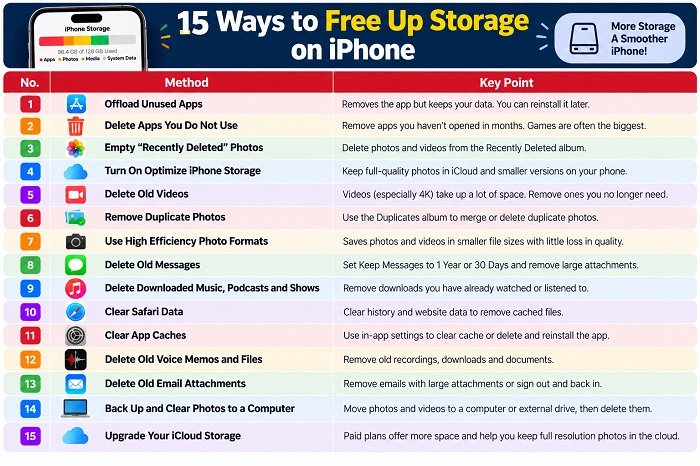
Start with the tips at the top, which usually free up the most space.
1. Offload Unused Apps
Offloading removes an app but keeps its documents and data. If you reinstall it later, everything is still there.
To offload all apps you rarely use automatically, go to Settings, then Apps, then App Store, and turn on Offload Unused Apps. On older versions of iOS, this setting is under Settings, App Store.
You can also offload a single app from the iPhone Storage screen by tapping it and choosing Offload App.
2. Delete Apps You Do Not Use
Scroll through your apps and remove any you have not opened in months. Press and hold the app icon, then tap Remove App and Delete App. Games are often among the biggest apps on your phone.
3. Empty “Recently Deleted” Photos
When you delete photos and videos, they stay in the Recently Deleted album for 30 days. To free up storage on iPhone right away, open Photos, find Recently Deleted under Utilities, and delete everything there.
4. Turn On Optimize iPhone Storage
If you use iCloud Photos, you can keep full quality photos in iCloud and smaller versions on your phone. Go to Settings, tap your name, then iCloud, Photos, and choose Optimize iPhone Storage.
5. Delete Old Videos
Deleting videos is often the fastest way to free up storage on iPhone. Videos take up far more space than photos, especially 4K and slow motion clips. One minute of 4K video can use hundreds of megabytes. Review your videos and delete ones you no longer need.
6. Remove Duplicate Photos
Recent versions of iOS can find duplicate photos for you. In the Photos app, look for the Duplicates album under Utilities, then merge or delete them.
7. Use High Efficiency Photo Formats
Go to Settings, Camera, Formats, and choose High Efficiency. This saves photos and videos in smaller file formats with little loss in quality.
8. Delete Old Messages
Cleaning up Messages is another easy way to free up storage on iPhone. Years of texts, photos and videos in Messages can use several gigabytes. Go to Settings, then Apps, Messages, Keep Messages, and change it from Forever to 1 Year or 30 Days.
You can also review large attachments by going to the iPhone Storage screen, tapping Messages and choosing Review Large Attachments.
9. Delete Downloaded Music, Podcasts and Shows
Downloaded music, podcasts, movies and TV shows from streaming apps can take up huge amounts of space. Remove downloads you have already watched or listened to, and check the download settings in each app.
10. Clear Safari Data
Go to Settings, Apps, Safari, and tap Clear History and Website Data. This removes cached files that build up over time. You will be signed out of some websites.
11. Clear App Caches
Some apps, such as social media and streaming apps, store large amounts of cached data. Some have an option to clear the cache inside their settings. If not, deleting and reinstalling the app can clear it, though you may need to sign in again.
12. Delete Old Voice Memos and Files
Check the Voice Memos app and the Files app for old recordings, downloads and documents you no longer need.
13. Delete Old Email Attachments
Mail apps can store attachments on your phone. Deleting old emails with large attachments, or signing out and back into an email account, can free up space.
14. Back Up and Clear Photos to a Computer
If you do not want to pay for iCloud storage, you can move photos and videos to a computer or external drive and then delete them from your phone. Always check the backup worked before you delete anything.
15. Upgrade Your iCloud Storage
Every Apple account comes with 5GB of free iCloud storage, which fills up quickly. Paid iCloud+ plans offer much more space for a small monthly fee and can be shared with family. With more iCloud space, you can keep full resolution photos in the cloud and use Optimize iPhone Storage on your phone.
How to Free Up Storage on iPhone Without Deleting Photos
📱 Free Up iPhone Storage Without Deleting Photos
Keep your favorite memories safe while creating more space on your iPhone!
1. Optimize iCloud Photos
Enable iCloud Photos and select Optimize iPhone Storage. Full-resolution originals stay in iCloud while smaller versions save space on your device.
2. Use Cloud Storage
Back up your photos and videos using Google Photos, Amazon Photos or another cloud service. Verify your backup before removing local copies.
3. Transfer Files to a Computer
Connect your iPhone to a computer using a cable and transfer your photos and videos to free up valuable device storage.
4. Use an External Flash Drive
Store your photos and videos on a compatible USB-C or Lightning flash drive designed for iPhones.
Always check that your photos and videos have been successfully backed up or transferred before deleting them from your iPhone. Also remember that deleting files from a synced iCloud Photos library can delete them from iCloud and other connected devices.
Many people do not want to lose their photos and videos. You can still free up storage on iPhone without deleting a single memory:
- Turn on iCloud Photos with Optimize iPhone Storage, so full size originals stay in iCloud.
- Use Google Photos, Amazon Photos or another cloud service to back up your library, then remove the copies from your phone once you have checked the backup.
- Move photos to a computer or external drive using a cable.
- Use a USB C or Lightning flash drive made for iPhones to store photos and videos.
How to Free Up Storage on iPhone for an iOS Update
iOS updates often need several gigabytes of free space to download and install. If your iPhone says there is not enough room:
- Offload a few large apps you rarely use. The update can reinstall them afterwards.
- Delete downloaded movies, shows and music.
- Empty Recently Deleted photos.
- Try updating through a computer, which needs less free space on the phone.
What Is System Data on iPhone?
📱 What Is System Data on iPhone?
Understand what’s taking up space and learn how to reduce unnecessary system storage.
System Data contains temporary files, caches, logs and other resources used by iOS. It may sometimes grow larger than expected and occupy valuable iPhone storage.
1. Restart Your iPhone
Restarting your device can remove certain temporary files and refresh system processes, potentially reducing some unnecessary storage.
2. Clear Safari and App Caches
Remove Safari browsing data and clear cached files from apps that provide a cache-cleaning option in their settings.
3. Delete Old Messages and Attachments
Review old conversations, large video files, photos and attachments. Removing unnecessary items can free up additional space.
4. Update iOS
Check for the latest available iOS update. Software updates can include system improvements and bug fixes that may help with storage management.
If System Data remains unusually large, you can back up your iPhone, erase the device and restore it from your backup. This process may reduce System Data, but it is not guaranteed.
Always verify that your backup is complete and accessible before erasing your iPhone.
In the storage bar, you may see a large gray section called System Data (called “Other” on older versions). It includes caches, logs, temporary files and other data that iOS uses.
System Data can sometimes grow very large. To reduce it:
- Restart your iPhone. This can clear some temporary files.
- Clear Safari and app caches.
- Delete old messages and attachments.
- Update iOS to the latest version.
As a last resort, backing up your iPhone, erasing it and restoring from the backup can shrink System Data, but make sure your backup is complete first.
Why Free Up Storage on iPhone?
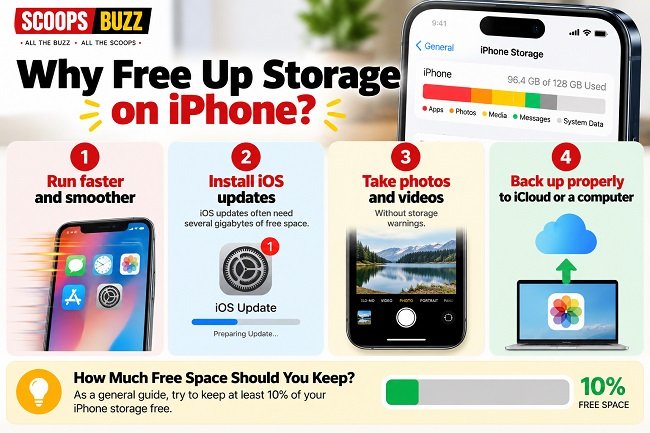
Keeping some free space helps your phone:
- Run faster and smoother
- Install iOS updates, which often need several gigabytes of free space
- Take photos and videos without warnings
- Back up properly to iCloud or a computer
As a general guide, try to keep at least 10% of your storage free.
How Much iPhone Storage Do You Need?
If you are buying a new iPhone, choosing the right storage size can save headaches later.
| Storage | Best for |
| 128GB | Light users who rely on iCloud and streaming |
| 256GB | Most people, including regular photo and video takers |
| 512GB | Heavy video recording, big games and lots of downloads |
| 1TB and above | Professional video and very large media libraries |
Free Up Storage on iPhone: Quick Checklist
| Task | Typical space saved |
| Empty Recently Deleted photos | Can be several gigabytes |
| Delete old videos | Often the biggest saving |
| Offload or delete unused apps | Hundreds of megabytes to gigabytes |
| Change Messages to keep 1 year | Can be several gigabytes |
| Remove downloaded shows and music | Often several gigabytes |
| Clear Safari data | Usually smaller, but helpful |
Tips to Keep Your iPhone Storage Under Control
- Check iPhone Storage every few months.
- Turn on Offload Unused Apps.
- Use streaming instead of downloading when you have WiFi.
- Delete videos you do not need right after recording them.
- Turn on iCloud Photos with Optimize iPhone Storage.
If you still have problems, Apple’s official help pages at Apple Support explain each setting in detail. You can also read more about how Apple’s cloud service works on the iCloud Wikipedia page.
More From ScoopsBuzz
- How to fix slow WiFi at home: 15 easy ways to speed up your internet
- Apple October event: what to expect
Frequently Asked Questions
How do I free up storage on iPhone quickly?
Empty Recently Deleted photos, delete old videos, offload unused apps and remove downloaded shows and music.
Does offloading an app delete my data?
No. Offloading removes the app but keeps its documents and data, so you can reinstall it later.
Why is my iPhone storage full when I have iCloud?
iCloud backups do not automatically remove files from your phone. Turn on Optimize iPhone Storage for photos to keep smaller versions on your device.
What is System Data on iPhone?
It includes caches, logs and temporary files used by iOS. Restarting, clearing caches and updating iOS can help reduce it.
How much free space should I keep on my iPhone?
Try to keep at least 10% of your total storage free.
Will deleting messages free up space?
Yes. Old messages with photos and videos can take up several gigabytes.
Sources: Apple Support, Apple iOS settings